> ## Documentation Index
> Fetch the complete documentation index at: https://magicpatterns.mintlify.site/docs/llms.txt
> Use this file to discover all available pages before exploring further.
# OpenAI
> Learn how to integrate OpenAI into your Magic Patterns design
## Introduction to OpenAI
Want to build a chat app or AI assistant on Magic Patterns? You can use our OpenAI integration to create fully functional AI apps that leverage the latest models from OpenAI, the same company that build ChatGPT.
 ## Step by Step Tutorial
Create a new OpenAI account if you don't already have one.
**This is a required step:** You need to add a payment method and set up billing on your OpenAI account before you can use the API.
Without billing configured, your API key will not work and API calls will fail.
You can [set up billing here](https://platform.openai.com/settings/organization/billing/overview).
Magic Patterns uses the OpenAI API to communicate with OpenAI's services.
Your API key is sensitive and should be stored securely—never share it
directly in prompts to Magic Patterns.
You can [create a new API key here](https://platform.openai.com/api-keys).
We highly recommend setting a usage limit on your OpenAI account. This
protects you from unexpected charges in case your API key is accidentally
exposed or compromised.
Once you have your API key, enable the integration in Magic Patterns via the integrations section in the chatbar.
## Step by Step Tutorial
Create a new OpenAI account if you don't already have one.
**This is a required step:** You need to add a payment method and set up billing on your OpenAI account before you can use the API.
Without billing configured, your API key will not work and API calls will fail.
You can [set up billing here](https://platform.openai.com/settings/organization/billing/overview).
Magic Patterns uses the OpenAI API to communicate with OpenAI's services.
Your API key is sensitive and should be stored securely—never share it
directly in prompts to Magic Patterns.
You can [create a new API key here](https://platform.openai.com/api-keys).
We highly recommend setting a usage limit on your OpenAI account. This
protects you from unexpected charges in case your API key is accidentally
exposed or compromised.
Once you have your API key, enable the integration in Magic Patterns via the integrations section in the chatbar.
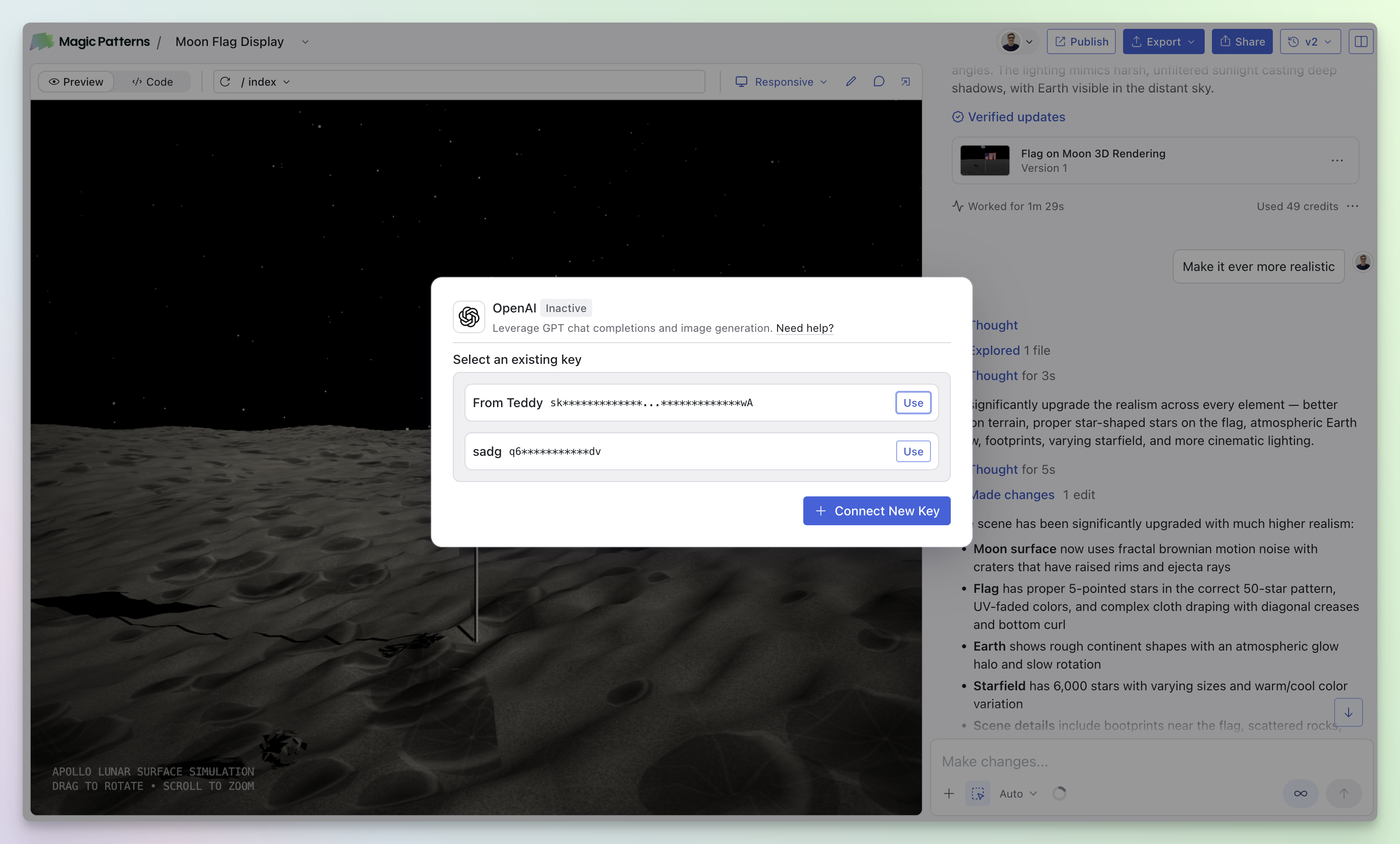 By default, Magic Patterns will not connect to OpenAI. Once the integration is enabled, you can
prompt along the lines of "Connect this design to OpenAI" and Magic Patterns will then integrate your design.
Once a design is connected to OpenAI, anyone you share the design or preview
link with will be able to use the AI features. This will consume your OpenAI
API credits.
By default, Magic Patterns will not connect to OpenAI. Once the integration is enabled, you can
prompt along the lines of "Connect this design to OpenAI" and Magic Patterns will then integrate your design.
Once a design is connected to OpenAI, anyone you share the design or preview
link with will be able to use the AI features. This will consume your OpenAI
API credits.